
Do my files leave this browser?
Files and passwords stay in this browser. There is no upload or remote conversion.
Add AES-256 protection or remove encryption with a password you already know.
PDF ≤ 10 MiB · input pages ≤ 100 · PDF ≤ 20 MiB · UTF-8 ≤ 127 bytes
Only use files you are authorized to process. The result rewrites PDF structure; keep the original. Signed PDFs and XFA are rejected. No password guessing or recovery is provided. Passwords are not saved by this tool.
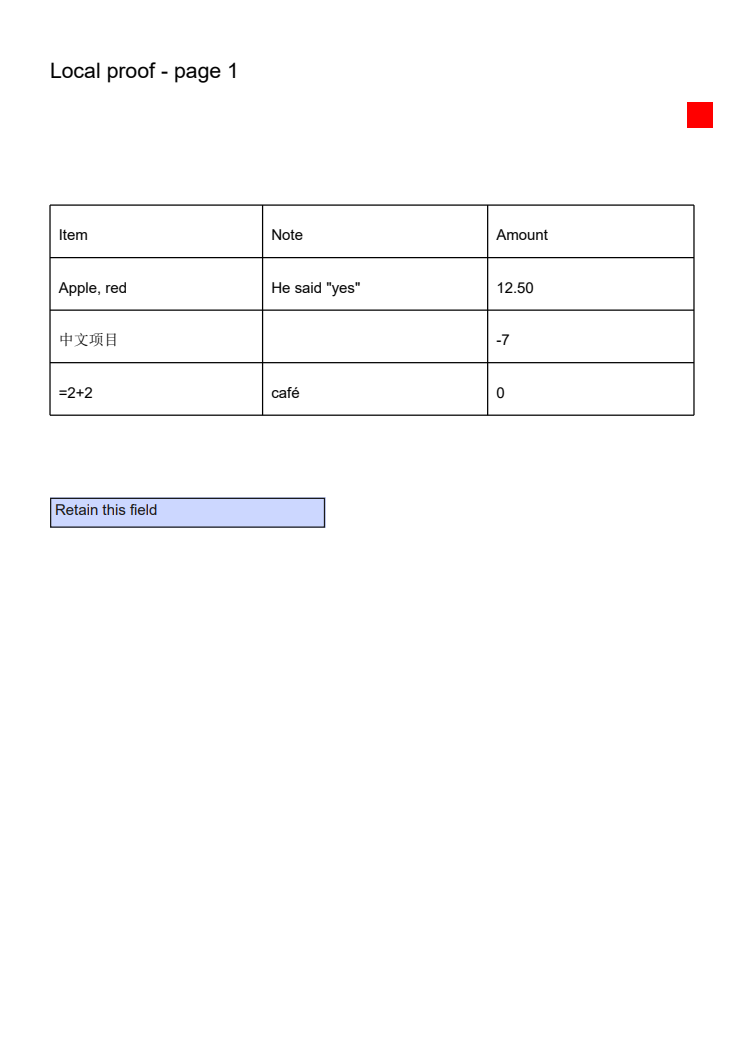
Actual source, generated file and a selected-page preview.
AES-256
测试口令
Example settings: encryption: AES-256 · samplePassword: 测试口令 · outputFiles: 1
Previews show the listed page or entry. Download the original files to inspect all content.
Add AES-256 protection or remove encryption with a password you already know.
Only use files you are authorized to process. The result rewrites PDF structure; keep the original. Signed PDFs and XFA are rejected. No password guessing or recovery is provided. Passwords are not saved by this tool.
Choose a PDF and select whether to add or remove its password.
For protection, enter the new password twice. To unlock, supply the known user or owner password.
Process the file and download the protected or unlocked copy. Password fields are cleared after the attempt.
questions
Files and passwords stay in this browser. There is no upload or remote conversion.
PDF ≤ 10 MiB · input pages ≤ 100 · PDF ≤ 20 MiB · UTF-8 ≤ 127 bytes
Only use files you are authorized to process. The result rewrites PDF structure; keep the original. Signed PDFs and XFA are rejected. No password guessing or recovery is provided. Passwords are not saved by this tool.