
Image to Pixel Art Converter

Turn your image to Pixel Art

Drop in a photo and turn it into real pixel art — set Pixel Size, pick a retro or auto palette, and export PNG. Need a craft pattern? Turn on Numbered pattern guide for a paint-by-number sheet with adjustable colors. Everything runs on your device — free in your browser, no signup.

Photo converted to pixel art with a retro palette
ORIGINAL
PIXEL ART

Pixel Art Studio

☞ runs entirely in your browser — nothing is uploaded
Your image before pixel art conversion
ORIGINAL
PIXEL ART · AUTO
Drop image to convert
PNG · JPG · WEBP · GIF
or drag & drop, or paste from clipboard
no photo? try
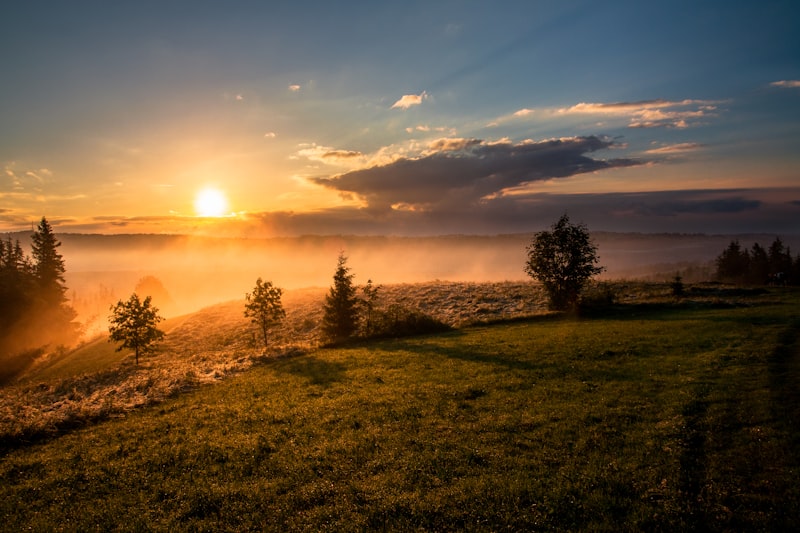
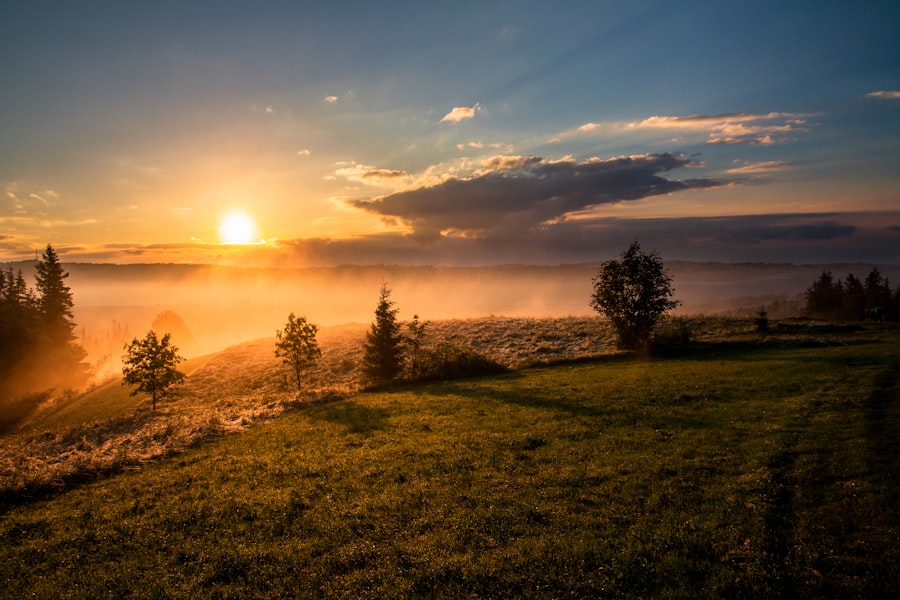
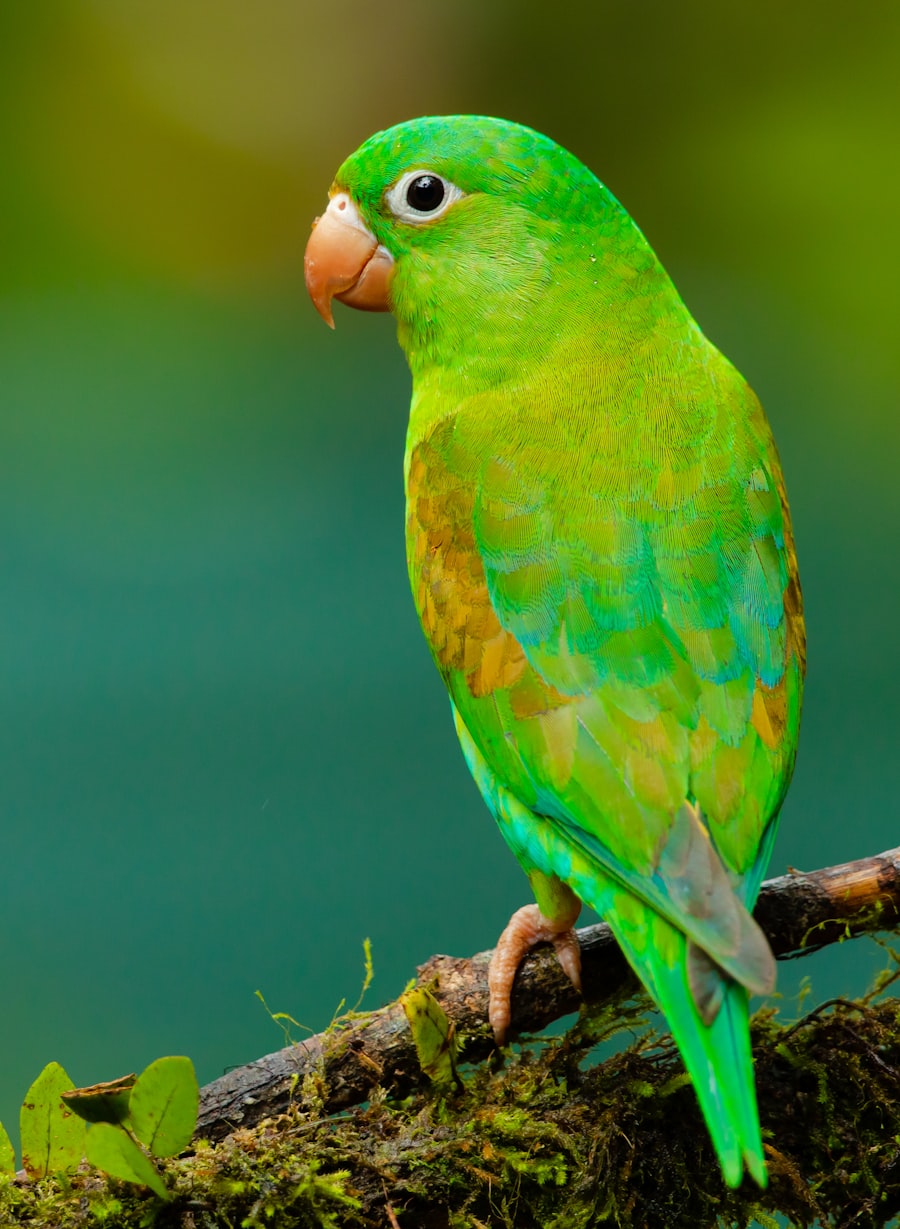
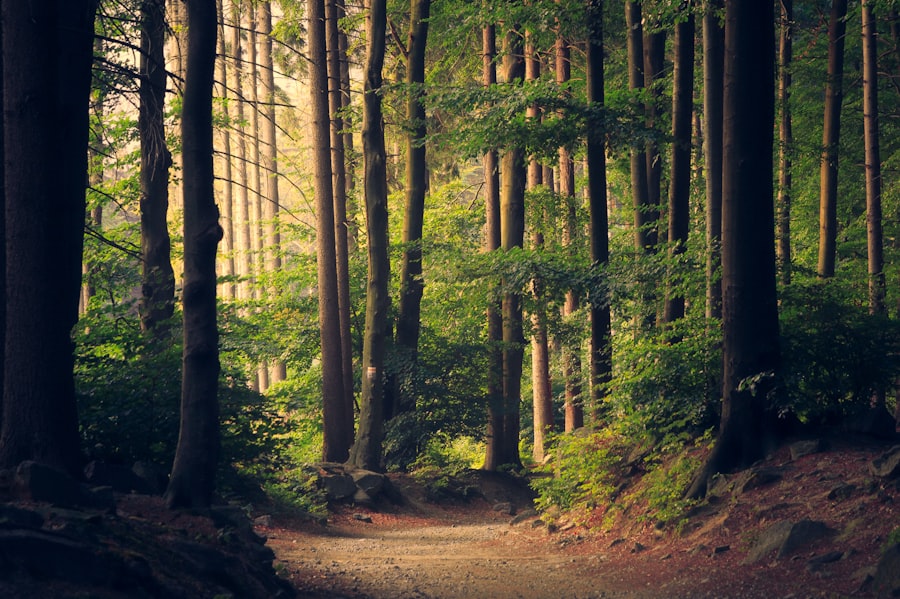
sunset parrot forest
1
— px
0
0
0

five steps

How it works

Turn a photo into pixel art in seconds — and optionally add a paint-by-number guide for crafts. No signup, nothing uploaded to a server.

01

Upload or paste a photo — drag it in, click upload, or Ctrl/Cmd+V.

02

Set Pixel Size — smaller blocks keep more detail; larger blocks are faster to paint by hand.

03

Pick a palette — retro styles like Pico-8 or Game Boy, or Auto (color count appears when you enable the guide).

04

Turn on Numbered pattern guide above Export PNG — the numbered preview appears below your image, with colors and palette on the right.

05

Export pixel art PNG, or — with the guide on — Guide PNG / ZIP with palette readme.

use cases

Built for games, crafts, and retro style

Game sprites & indie art

Pico-8, NES, and Game Boy palettes give authentic 8-bit color limits for sprites, tiles, and mock-ups.

Minecraft & block builds

The Minecraft palette maps photos to block-friendly colors — useful for planning in-game pixel art and banners.

Perler beads & cross-stitch

Turn on the numbered pattern guide for a paint-by-number grid with palette export — ideal for pegboards and thread charts.

what to make

Pixel art ideas

Turn a photo into a blueprint you can actually build — pixel art for screens, numbered grids for pegboards and thread.
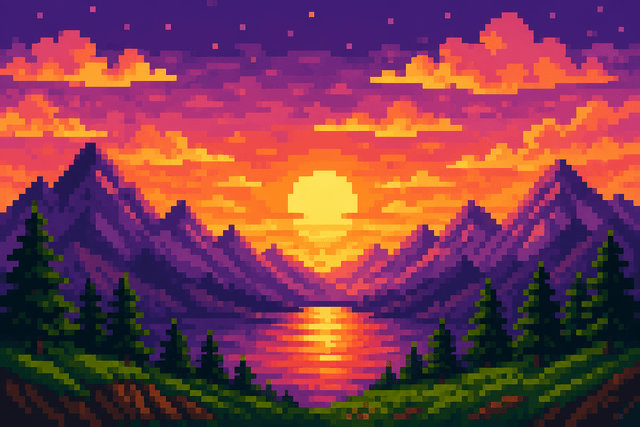
Pixel art mountain sunset wallpaper illustration

Wallpapers & backgrounds

A favorite photo becomes a chunky retro wallpaper for your phone or desktop — match the palette to your setup.
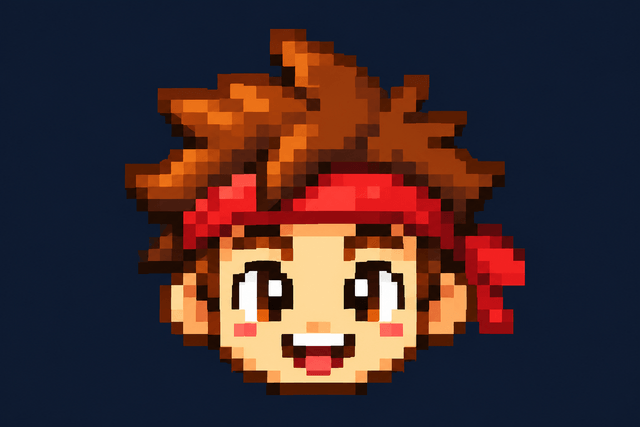
Pixel art character sticker illustration

Chat stickers

Export a small, high-contrast pixel portrait for WhatsApp, Telegram, or Discord stickers — bold blocks stay readable even tiny.
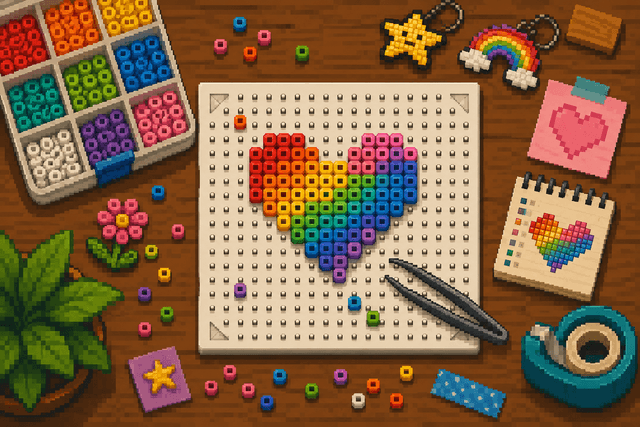
Pixel art perler bead craft scene illustration

Perler / Hama beads

Each block is one bead — use a small Pixel Size, turn on Numbered pattern guide, pick 8–12 colors, and follow the numbered preview below your image while placing beads.
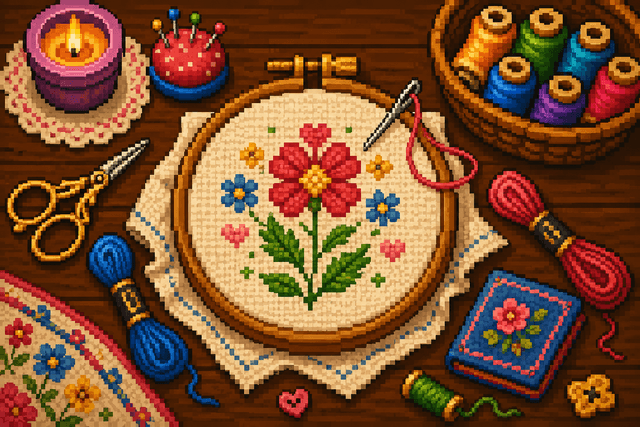
Pixel art cross-stitch craft scene illustration

Cross-stitch charts

Enable the numbered guide for one square per stitch, with color indices and a palette sheet — ZIP export includes hex codes for thread matching.
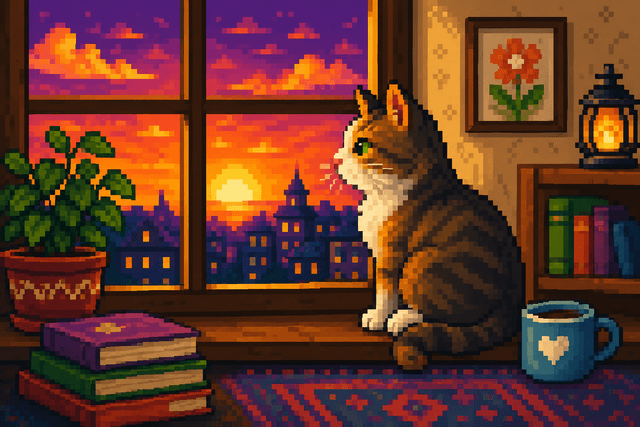
Pixel art cozy room scene illustration

Framed prints & wall art

Turn a pet, family, or travel photo into a retro print worth framing — a gift no one else will have.
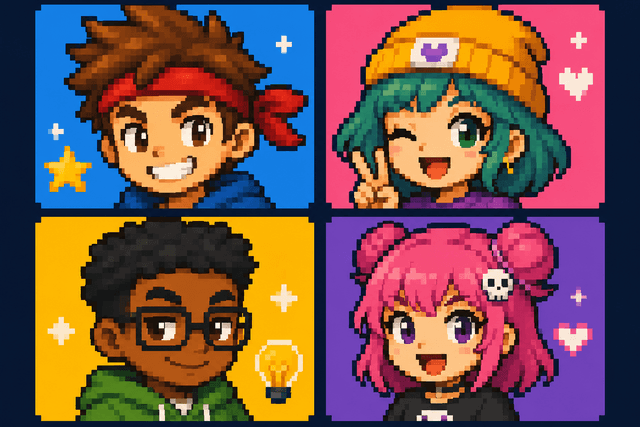
Pixel art avatar portraits illustration

Avatars & emotes

Make crunchy pixel profile pictures, Discord emotes, or stream badges from any selfie.

quick answers

Pixel Art FAQ

What is pixel art?

New to pixel art? It is the look of classic 8-bit and 16-bit games like the NES, Game Boy, and Commodore 64 — an image drawn on a small grid of square pixels using only a handful of colors. Converting a photo means shrinking it to a low-resolution grid, mapping each block to the nearest palette color, and upscaling with nearest-neighbor sampling, so it reads as clean, deliberate pixels instead of a blurry mosaic — the same hand-made, retro feel without placing a single pixel by hand.

How do I turn an image into pixel art?

Upload or paste a photo, then drag Pixel Size to control block size. Pick Auto or a retro palette like Pico-8, Game Boy, NES, Commodore 64, or Minecraft. Adjust brightness, contrast, and saturation, use compare to check the result, and export PNG. For crafts, check Numbered pattern guide above Export PNG to open the paint-by-number preview and palette tools.

How do I pixelate an image without blurring it?

We downscale, snap each block to a palette color, then upscale with nearest-neighbor sampling, so edges stay hard instead of smudged.

Can I convert a photo to Game Boy or Minecraft style?

Yes — pick the Game Boy palette for the classic 4-shade green, or Minecraft for block-inspired colors. You can also convert a photo to Pico-8, NES, or Commodore 64 style, drop to a mono palette, or let the auto palette pull colors straight from your own image for a custom retro look.

Are my images uploaded?

No. Your image never leaves your device — the converter runs 100% in-browser, so uploads, adjustments, palette matching, preview, and export all happen locally.

Is it really free with no watermark?

Yes — it is completely free, with no signup, no watermark, and nothing to install. The whole image to pixel art converter runs in your browser, so every step from reading the file to rendering the final PNG happens on your own device, and your photo never leaves your computer or phone.

Can I convert a JPG or PNG to pixel art?

Yes — the image to pixel art converter accepts JPG, PNG, WebP, and GIF. Drop the file in and it is converted right on your device, with nothing uploaded to a server.

How do I turn a photo into pixel art for Minecraft?

Pick the Minecraft palette and set a small Pixel Size, then rebuild blocks in-game one per pixel. For Perler beads or cross-stitch, turn on Numbered pattern guide to get a labeled grid and palette export alongside the pixel preview.

Does the image to pixel art converter work on a phone?

Yes — it is a web app that runs in any modern mobile browser. Upload a photo from your camera roll and export the pixel art straight to your device.

What Pixel Size should I use?

A lower Pixel Size keeps more detail; a higher one makes chunkier, more retro blocks. Start around 2 and drag the slider until it looks right — pair it with the before/after slider to compare against the original photo, and turn on the grid overlay when you want to see each block clearly.

Can I make a pixel art avatar or profile picture?

Yes — upload a selfie or headshot, raise the Pixel Size for a chunkier, more retro look, pick a palette you like, and export the PNG. The result works well as a profile picture, Discord avatar, or stream badge, and because everything runs in your browser the original photo never leaves your device.

What is a numbered pattern guide?

It is an optional paint-by-number view of your pixel grid — each cell shows a number matching the palette list. Turn it on with the Numbered pattern guide checkbox above Export PNG after you upload an image. The numbered preview appears below your main image; color count, palette chips, and guide exports sit in the panel on the right. Ideal for perler beads, cross-stitch, or any hand-recreated grid.

How many colors should I use for a pattern?

Fewer colors are easier to paint by hand. Use 8 for simple icons, 12 for balanced designs, and 16 or more for extra shading. With Auto palette and the guide enabled, pick 8, 12, 16, 24, or 32 in the Colors row. Retro palettes (Game Boy, Pico-8, etc.) use their fixed color sets — the count is shown but not editable. Lower colors or raise Pixel Size if the guide feels too busy.

What is in the ZIP pack?

When the numbered guide is on, ZIP pack exports three files: pixel-art.png (color preview), numbered-guide.png (cells labeled with palette indices), and readme.txt with every color as hex and RGB. Useful for thread or bead lists without retyping codes.

How do I make a pixel art pattern for perler beads or cross-stitch?

Upload your image, set a small Pixel Size so each block is one bead or stitch, then check Numbered pattern guide above Export PNG. Choose 8–12 colors with Auto palette, turn on the grid overlay if helpful, and use the numbered preview below your image. Export Guide PNG to print or ZIP pack for the full palette readme.