
Decide what the handout must preserve
You have a four-page reference document and want a compact handout with two original pages on each side. The task is to arrange complete pages while keeping small text, page labels and diagrams readable. Decide the paper size and inspect the smallest writing before choosing a denser layout.
Two-up describes the arrangement on each output PDF page. It does not by itself specify how many physical sheets a printer will use: that also depends on copies and single-sided or duplex printing. A booklet is a separate workflow with pages imposed for folding, rather than an ordinary reading-order handout.
Create and inspect the two-up PDF
If the print dialog also applies two pages per sheet, it can place two already arranged pages on one side, making four original pages smaller again. Choose a single stage to perform the handout arrangement.
- Open PDF Pages per Sheet and choose the source PDF. Read the source page count.
- Choose 2 pages per sheet and the paper size required for the handout. For the public sample, use A4 with Auto orientation and leave page borders off.
- Inspect the preview. Auto orientation chooses a layout using the first page; mixed page shapes still need a check in the complete export.
- Download the arranged PDF. Open each output page and read the original page labels in order, including the last occupied position.
- At printing time, select the arranged file, check the physical paper size, and keep the print dialog at one PDF page per printed side. Inspect a test print at the intended size before making multiple copies.
Check four source pages on two A4 landscape pages
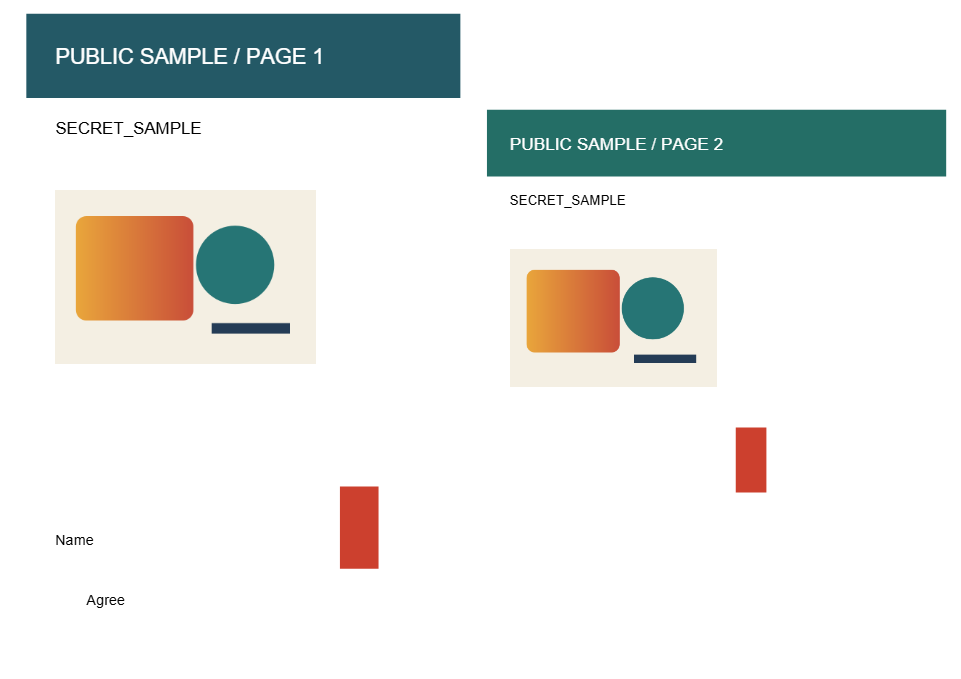
Our public four-page PDF contains different page shapes. The saved two-up result has two output pages, each 841.89 × 595.28 points, corresponding to landscape A4. The first output page contains source labels PAGE 1 and PAGE 2; the second contains PAGE 3 and PAGE 4.
Text extraction still finds the authored text from all four source pages in this example. The saved output is 10,622 bytes, larger than the 8,167-byte input. Fewer output pages do not guarantee fewer file bytes, and this layout tool should not be treated as a file-size compressor.
| Bytes | PDF pages | Reading order | |
|---|---|---|---|
| Source | 8,167 | 4 | 1, 2, 3, 4 |
| Two-up result | 10,622 | 2 | 1 + 2; then 3 + 4 |
Check text, edges and features in the final reader
Look at all four corners of each original page and the transitions between pages. Mixed portrait and landscape inputs can produce different amounts of empty space. A page fitting inside its cell does not mean that its smallest diagram labels remain readable at print size.
Try selecting a known sentence on each output page. Our sample retains extractable text, but live form controls, annotations and document signatures require their own final-file checks. This workflow places page content on new PDF pages; it is not a promise to preserve every document-level feature.
When to keep the original layout
If the intended reader needs larger text, use one page per side or another suitable output size. Zooming into an on-screen preview can hide a print-readability problem. Keep the original so the recipient can read the full-size version when needed.
For an odd source-page count, inspect the final output page and its unused position instead of assuming a blank source page was lost. If the goal is a folded booklet, use a booklet workflow and check its imposed order separately. This public sample verifies file structure and text, not a physical printer or paper saving.