
Identify which page needs a saved change
A document opens with one sideways attachment while the other pages read normally. You need a copy that the next reader can open without manually turning that page. Keep the original and identify the affected page by its content and thumbnail position.
Distinguish a quarter-turn problem from a scan that leans by a few degrees. Rotate PDF changes the page's orientation in right-angle steps. It does not detect the angle of printed lines, correct perspective or recognise writing inside a scanned image.
Turn the page, download and reopen the attachment
A reader's temporary view controls can make a page look correct without establishing what the file you will send contains. Judge the downloaded attachment itself, not an already-rotated preview tab.
- Open Rotate PDF and choose the source file. Wait for its page grid and page count.
- Click the affected page thumbnail to turn it clockwise by 90 degrees. Repeat only as needed, using the visible page content to decide when it is upright.
- Check nearby pages before downloading. If only one page needs a turn, leave the others alone rather than applying a document-wide action.
- Download the rotated PDF and open that saved copy in a fresh reader view. Check the page that changed and the first and last pages.
- Confirm that the page count, readable edges and required text are still present. If selectable text matters, try a known sentence or inspect the copy with PDF to Text.
Inspect a stored quarter-turn in the public sample
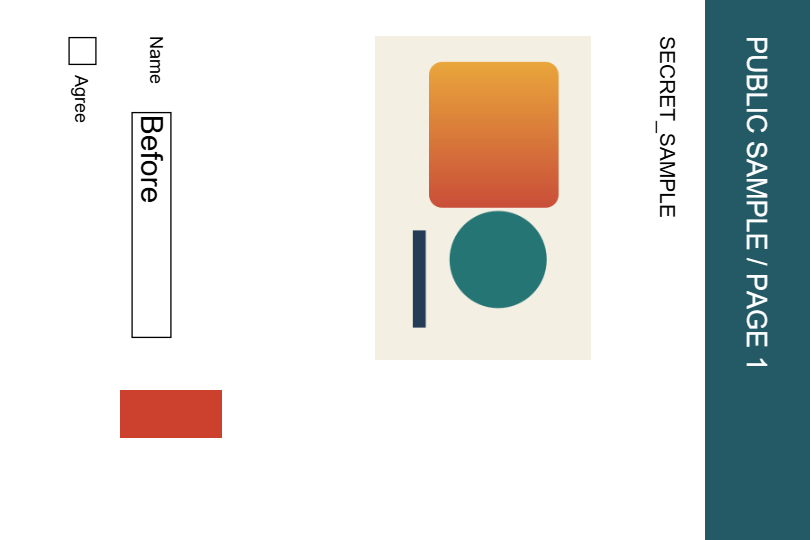
To make the operation visible, our authored example deliberately turns an initially upright PAGE 1 clockwise. Its stored rotation changes from 0 to 90 degrees. The displayed page bounds change from 360 × 540 to 540 × 360 PDF points. This demonstrates the saved turn; it is not a claim that the example started sideways.
The output still has four pages and the same extracted text on each page. Pages 2–4 retain their original displayed dimensions and rotations, including the fourth page's existing 90-degree rotation. The saved result is 8,166 bytes versus 8,167 for the source; that one-byte difference is not a compression benefit to expect from rotation.
| Bytes | Page 1 viewport | Stored rotation | |
|---|---|---|---|
| Source | 8,167 | 360 × 540 pt | 0° |
| Saved result | 8,166 | 540 × 360 pt | 90° |
Check the content and any required document features
The tool changes PDF page rotation rather than rebuilding every page as a screenshot. Our sample retains extractable text, but turning an image-only page does not create a text layer. If the original scan had no selectable words, it can remain image-only after rotation.
Inspect diagrams, page numbers and edges in the final reader. If the document relies on forms, annotations, links or signatures, verify those features in the saved copy too. The public check covers page orientation and ordinary text, not every interactive PDF feature.
When a different preparation step is needed
For a slightly tilted or perspective-distorted scan, return to a suitable image-editing or document-capture workflow and inspect the new result. Repeated 90-degree turns cannot make a two-degree tilt level. Do not replace a required PDF with a screenshot without checking the receiving requirements.
Keep the original until the corrected copy is accepted. If a file is protected, damaged or cannot be opened, obtain an authorised readable source first. Finally check that the sending form contains the new download rather than the old attachment.