
Choose for the picture and its destination
Start with the destination's supported formats. A modern format brings little benefit if the upload form, printing service or editor cannot open it. Then look at the image itself: a photograph, a screenshot with text and a flat-colour logo stress an encoder in different ways.
| Situation | A useful starting point | Check before keeping it |
|---|---|---|
| Photograph without transparency | JPG; compare WebP if accepted | Faces, textured areas and edges at the intended size |
| Screenshot, line art or small text | PNG; compare other outputs carefully | Text edges, thin rules and flat-colour boundaries |
| Logo with transparent surroundings | PNG or a supported WebP export | Alpha transparency on light and dark backgrounds |
| An upload form naming a specific format | The required format | File type, dimensions and actual bytes |
Treat transparency as a requirement
JPG has no alpha transparency. Converting a transparent PNG to JPG requires a background; this site's JPG conversion flattens onto white. A logo that looked fine on a white page may then show a white rectangle when placed over a dark background.
PNG and WebP can carry transparency, but check the actual exported file and the receiving app. Format capabilities do not guarantee that every export option preserves every feature. A static canvas conversion also does not preserve an animated file's full sequence. Use an animation-specific tool when movement must remain.
The same public image in three formats
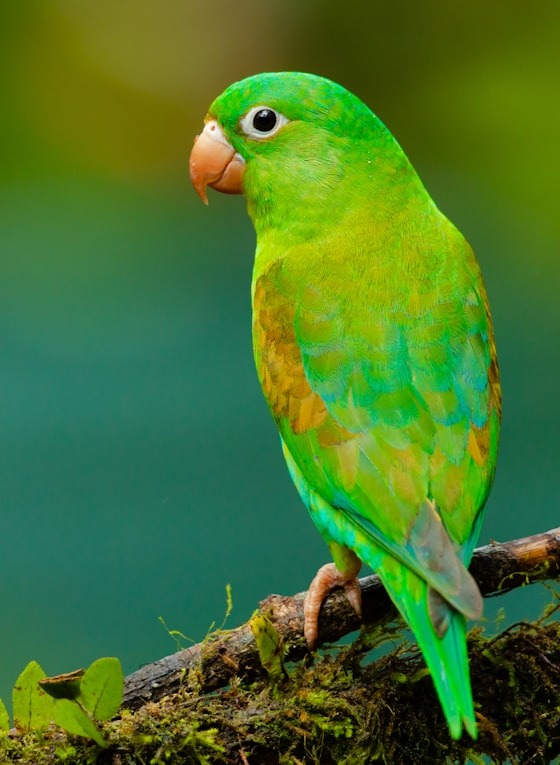
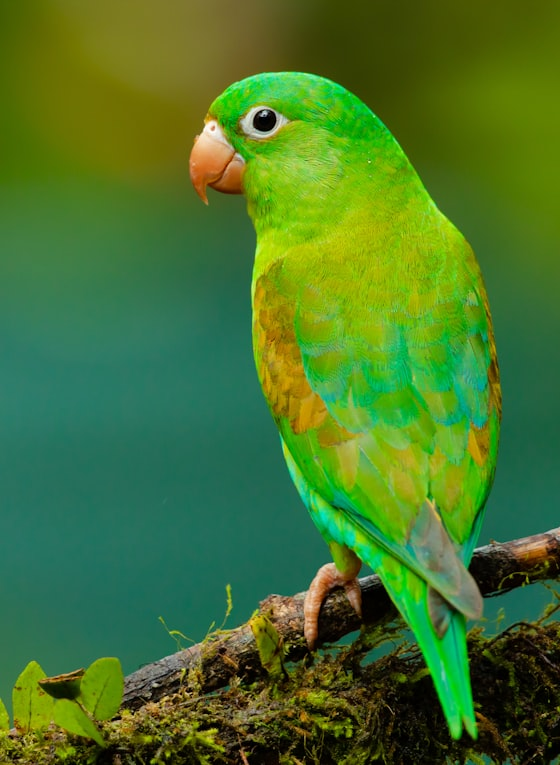
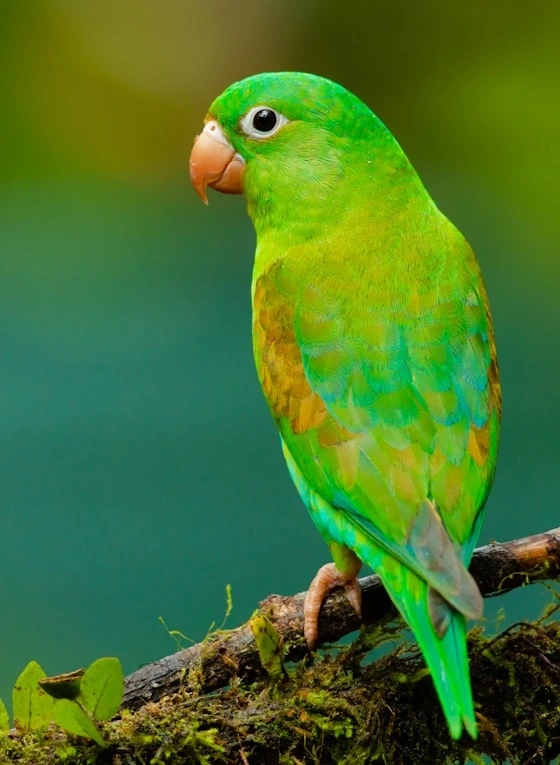
The following files come from the site's real converter examples. All are 560 × 765 pixels. The JPG and WebP exports use the same displayed quality setting of 92, but that number is an encoder setting, not a shared visual-quality score across formats.
For this photographic sample, the JPG and WebP files are much smaller than the PNG. This is one image, not a universal format ranking. A small diagram, a noisy scan or a different encoder can change the result. Compare the downloaded pictures as well as the byte counts.
| Format | Bytes | Pixels |
|---|---|---|
| PNG | 665,592 | 560 × 765 |
| JPG, quality 92 | 82,407 | 560 × 765 |
| WebP, quality 92 | 75,212 | 560 × 765 |
Convert from the best original you have
Converting a previously compressed JPG to PNG does not bring back the detail that JPG already discarded. It may produce a larger file that contains the same visible damage. Avoid a chain of JPG-to-JPG saves; make each candidate from the best source you still have.
- Open the converter matching your desired output and select the original file.
- Set the quality and dimensions deliberately. Keep the original dimensions when only the format needs to change.
- Generate the output and use the actual before-and-after comparison. Inspect fine detail and any transparent edges.
- Download the result and open it in the intended app. Keep the original until that test succeeds.