
Covering a sentence can leave it recoverable
A PDF page can store a text object and a black rectangle as separate objects. Drawing the rectangle above the text changes the visible page without necessarily changing the underlying words. Searching, copying or removing an annotation may expose information that looked hidden.
Use a copy of the original and a redaction workflow, not a drawing tool alone. Mark every occurrence of the information, including repeats on other pages. A saved page that looks blacked out is the start of verification, not proof that the complete document is safe to share.
How this tool rebuilds marked pages
OneImageTool's Redact PDF renders a marked page into an image, paints the selected rectangles into its pixels and places that image into a new PDF. The marked page's original text objects are not copied through that path. Pages without boxes are copied instead, so their selectable text may remain.
The 'Turn every page into an image' option applies page-image rebuilding to all pages. It still does not automatically find sensitive names or decide which pixels should be covered. Read every page, including any unmarked or blank-looking ones, before choosing what to remove.
What the public sample demonstrates
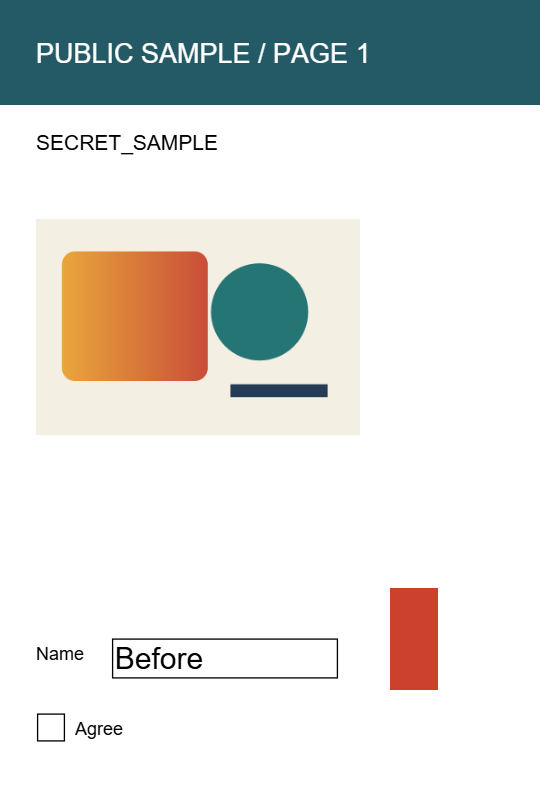
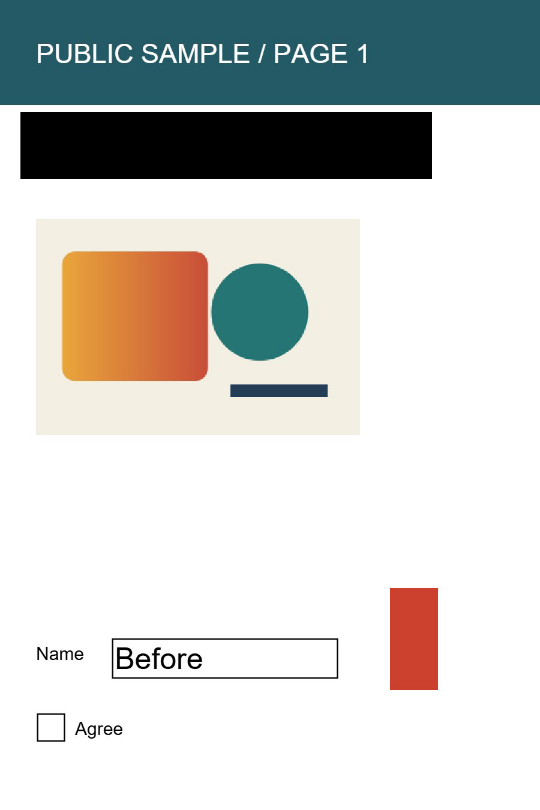
Our four-page sample contains the test phrase SECRET_SAMPLE. The exported example has a box over the text band on page one. PDF text extraction cannot find that phrase on the marked page, while it can still find it on page two, which was left unmarked.
The table describes a deliberately authored test file, not a security certification for arbitrary documents. The source and result let you examine the same limitation yourself. A search test is useful, but a clean search result alone cannot prove the absence of other sensitive information.
| Exported page | Marked | SECRET_SAMPLE in extracted text |
|---|---|---|
| Page 1 | Yes | Not found |
| Page 2 | No | Still present |
Review more than the visible black rectangles
The marked pages become images, so they lose selectable text and may lose accessibility information. Rebuilding or editing a signed document can also invalidate its signature. For material that needs an audited removal or sanitization process, use an appropriately reviewed workflow and verification procedure; this example does not establish that assurance.
- Open the file in Redact PDF, mark the full sensitive area and inspect all pages for repeated information.
- Export a separate copy and reopen that exported file in a PDF reader.
- Check the marked regions visually, then search and attempt to copy the removed phrases. Use PDF to Text as an additional check of the remaining text layer.
- Review document properties and any comments, attachments, layers, form data or unmarked pages using tools appropriate to the document. Do not assume visual page redaction also sanitizes every kind of hidden information.
- Share the verified exported copy and retain the original privately when you need it.