
Identify the page the recipient actually needs
A colleague asks for one page from a longer attachment. Sending the complete PDF adds unrelated material and makes the required page harder to find. Keep the original, identify the page visually and prepare a separate attachment containing only the requested page.
Count from the first thumbnail in the file. A document's printed page numbers can restart after a cover, use Roman numerals or omit some pages. Thumbnail 2 means the second PDF page, even when the number printed on it says something else. Confirm a heading or a distinctive detail as well as the number.
Select the page and export a separate PDF
For a custom sequence of several pages, inspect the extracted result and use Organize PDF if pages need rearranging. Do not assume that the order in which you clicked thumbnails establishes the final reading order.
- Open Extract PDF Pages and choose the source PDF. Wait for the page grid and total count.
- Click the required page thumbnail. Check its selected state and the output-page count. For the public example below, select only thumbnail 2.
- If another page is selected accidentally, click it again to deselect it. Confirm that the count describes the attachment you intend to send.
- Use the download control to save the extracted PDF. Open that downloaded file, rather than relying on the source preview.
- Check the first and last output pages, their headings, orientation and readable edges. For a one-page attachment, the result should contain exactly one page.
Verify the second-page public sample
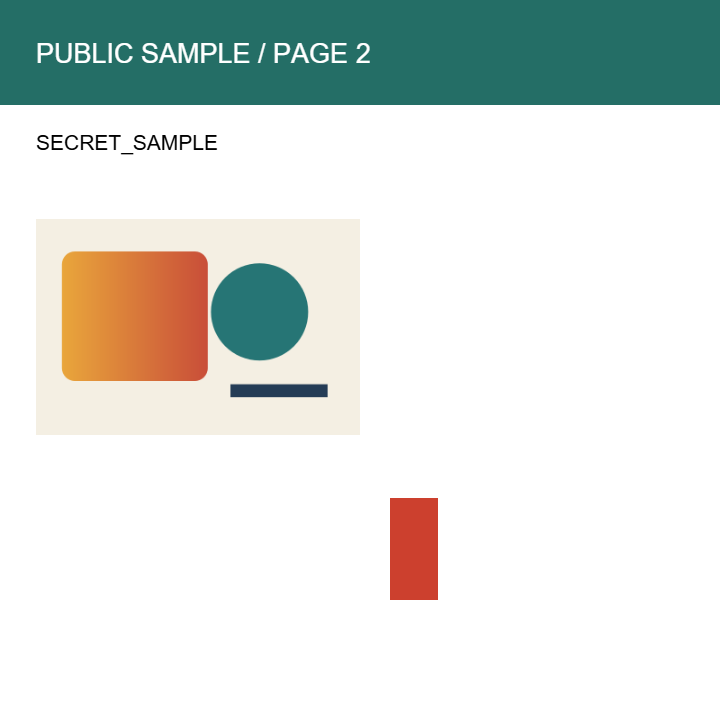
The authored source has four pages with different sizes and visible PUBLIC SAMPLE / PAGE labels. Selecting thumbnail 2 produces one 480 × 480 point page containing PUBLIC SAMPLE / PAGE 2. The downloaded sample is 4,877 bytes, compared with 8,167 bytes for the source.
Text extraction from the saved result matches the original second page in this sample. The PDF viewer now calls it page 1 of 1, while the text printed on the page still says PAGE 2. That difference is expected: extraction changes the page's position in a new file, not the words drawn on it.
| Bytes | Pages | Selected content | |
|---|---|---|---|
| Source | 8,167 | 4 | Four labelled test pages |
| Extracted result | 4,877 | 1 | Original PAGE 2; 480 × 480 pt |
Review the selected page before sharing
A correct page count does not establish that the page is appropriate to share. Review its visible text and images, and check any required comments, links, forms or signatures in the final reader. Our sample checks ordinary page dimensions and text; it does not establish preservation of every interactive PDF feature.
Extraction is not redaction. Information on the selected page remains in the new attachment, including the authored SECRET_SAMPLE phrase in our test file. If only part of that page should be disclosed, prepare and review a suitable copy separately instead of treating page selection as content removal.
When the file or result needs another step
If a protected or damaged PDF cannot be opened, return to an authorised readable source. A screenshot is a different deliverable and can lose selectable text and page quality; do not substitute one silently when a PDF is required.
Keep the original and the extracted copy until the recipient has the intended attachment. Recheck the actual file selected in the sending form. The tool creates a local download; it does not send the document or retain a recovery copy for you.