
Check the intake form before combining the images
An archive asks for the front and back of a card in a single TIFF. Write down which side belongs first, the accepted pixel dimensions, compression requirements and maximum file size. Keep the two originals so you can rebuild the package if the archive requests a different order.
Set page order and resolution
- Open Images to TIFF. Select the PNG and JPEG together. Use Move up or Move down until the front comes first. Preview both entries.
- For the public example, place the PNG before the JPEG and select 144 DPI. On image input this setting writes a resolution tag. The pixel dimensions stay the same.
- Choose Create TIFF, wait for the result and download it. Compare the actual byte count with the intake limit before uploading.
Account for the 3.4 MB export
Both public inputs show the same parrot at 560 × 765 pixels. The TIFF contains two image directories, each with those dimensions and 144 pixels per inch on both axes. Each pixel takes four bytes. Two pages therefore need 3,427,200 bytes of pixel data alone. The whole download is 3,427,608 bytes.
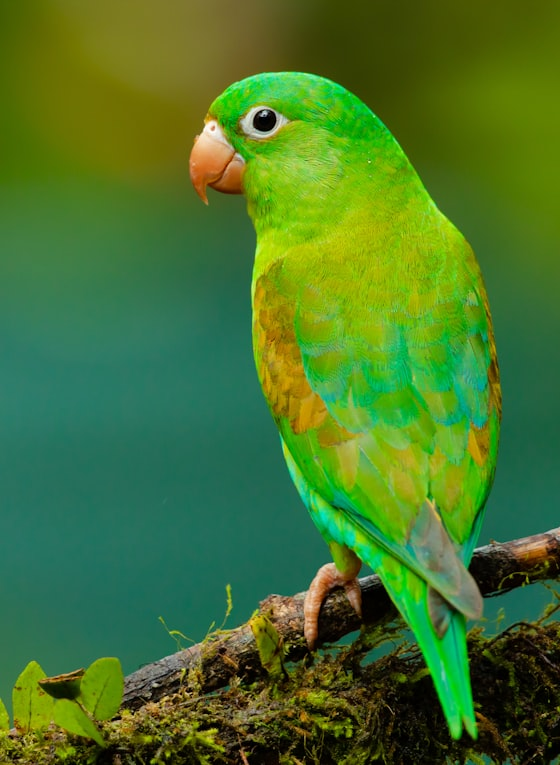
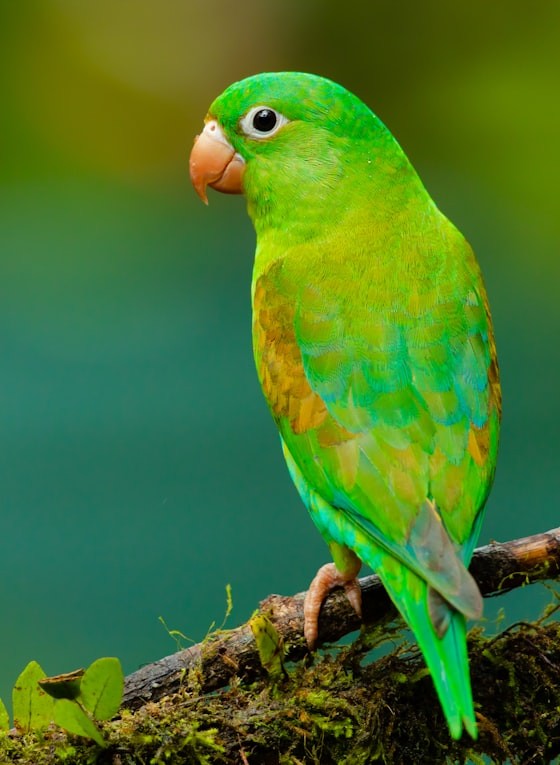
Inspect page two in the receiving viewer
For your card, check the first page against the front and the second against the back. The sample photos look almost identical, so use the page counter to check the sample. A viewer that displays only a thumbnail cannot complete this check. If the archive requires compressed, bilevel or colour-profiled TIFF, confirm its specification before sending this uncompressed 8-bit RGBA export. Changing the DPI tag cannot bring this file under a byte limit.