
Check whether your PDF is already compact
A PDF is a container for page objects, not a single image format. A page might contain selectable text, vector shapes, scanned photographs or a mixture. The filename alone does not tell you whether redrawing it as a picture will save space.
Try selecting a sentence and zooming in. Text that can be selected often belongs to a text layer, although a scan may also have an OCR layer. Treat this as a useful first check, not a complete inspection of the file. Keep the original whenever search, copy, forms or document structure matter.
Understand the page-to-image trade-off
OneImageTool's Compress PDF renders each page and places a JPEG version into a newly built PDF at the same page size. The settings pair a raster resolution with JPEG quality. It is a lossy page-image workflow, not a promise to optimize every existing PDF object.
After this conversion the visible words are pixels. The output loses the original selectable text layer, and the workflow does not preserve interactive forms, document tags, links or digital-signature validity. A viewer may offer its own OCR afterwards, but that is separate processing.
| Setting | Nominal page resolution | When to inspect especially carefully |
|---|---|---|
| Light | 144 PPI | Fine text, lines and small diagrams |
| Balanced | 108 PPI | Everyday reading and the smallest text on each page |
| Strong | 72 PPI | Documents where a strict size target outweighs fine detail |
A real example that grew after compression
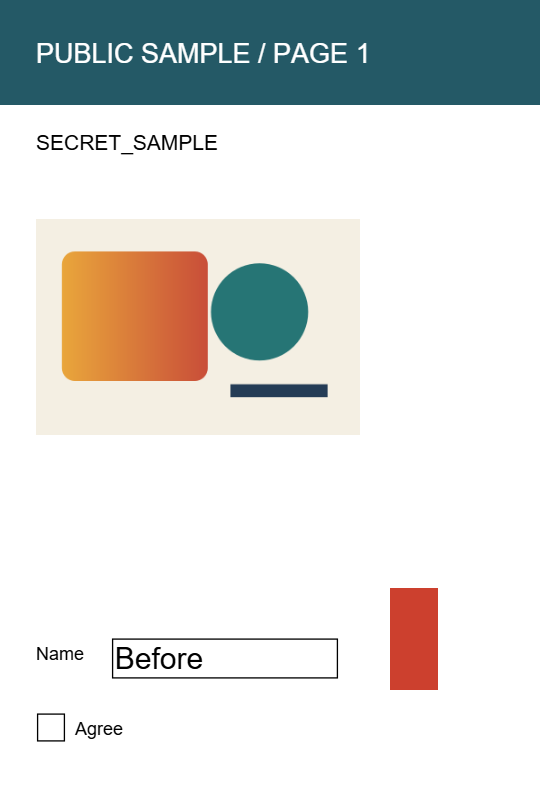
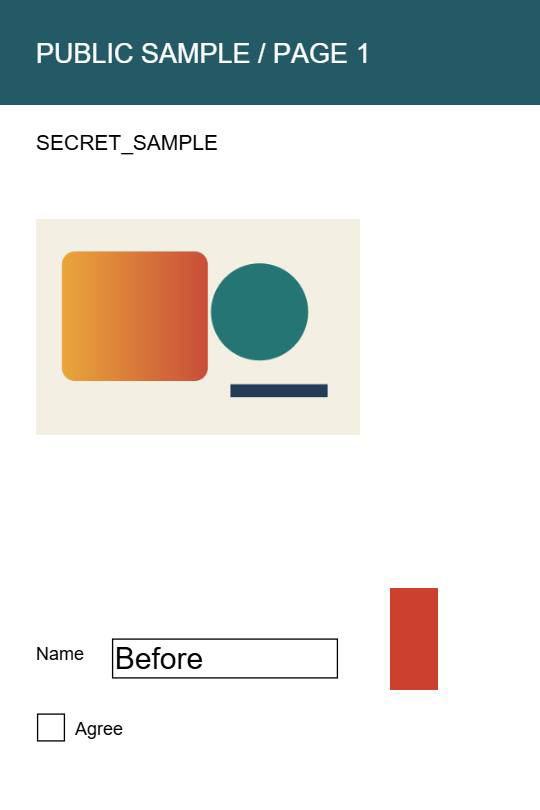
Our public four-page sample contains text, simple shapes and a small image. At Balanced, the generated PDF is larger than the original. Both copies are available below. Native PDF text extraction finds text in the source and no text items in the converted pages.
This result is useful evidence for choosing a workflow. It is not a typical saving rate for scans. A photograph-heavy scan may behave differently; measure your own document. The preview images show page one, while the byte counts cover each complete four-page file.
| Complete file | Bytes | Pages | Extractable text |
|---|---|---|---|
| Original PDF | 8,167 | 4 | Present |
| Balanced result | 57,471 | 4 | No text items |
Compare the output before you keep it
Extracting the words with PDF to Text can give you a separate text copy, but it does not preserve the original PDF's layout or restore its forms. If selectable text or accessibility structure is required, choose a workflow that explicitly preserves those properties rather than accepting a smaller page image.
- Open Compress PDF and choose a copy of the document.
- Start with Balanced and inspect the preview, especially small text. Check more than the first page in the downloaded result.
- Run compression and compare the actual file sizes. Try Light when detail matters or Strong only when its loss is acceptable.
- Open the resulting PDF and check page count, orientation, readable text and required features. Keep the original if the output is larger or less useful.