
Decide whether you need the picture or the complete page
A PDF contains an illustration you are authorised to reuse in another document. Saving a screenshot of the page also captures its headings, margins and surrounding text. First decide whether the required deliverable is the embedded bitmap or a faithful image of the whole page.
An embedded picture has its own pixel dimensions, independent of how large it appears on the PDF page. A logo drawn with vector paths may have no bitmap to extract. Likewise, a scanned page can be stored as one large image rather than separate photographs and text.
Scan the PDF and export the intended image
Do not infer that an empty or short result list means the PDF contains no artwork. Vector graphics, small filtered objects and unsupported image objects can require a different workflow. Review any skipped-image notice.
- Open Extract Images from PDF and choose the document. Wait for the scan and image cards to finish.
- Inspect the image previews and pixel dimensions. Identify the intended illustration by its contents, not only by its position in the result list.
- Review the minimum-edge filter and repeated-image setting if an expected small picture or repeated variant is missing. Change one setting and inspect the list again.
- Select the required result and use the download control. With one selected image, inspect the resulting PNG; for several results, open the downloaded archive and check its contents.
- Open the exported image and confirm its edges and dimensions. If you actually need the text and full layout around it, use PDF to PNG instead and inspect that page export.
Compare an extracted bitmap with a rendered page
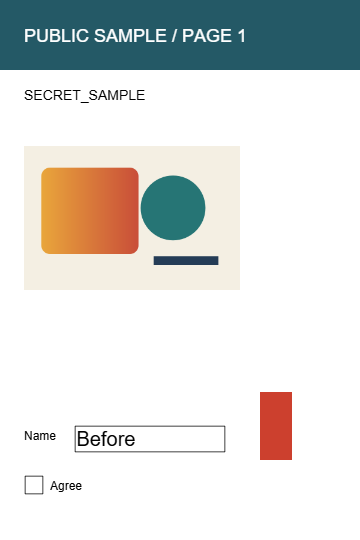
Our four-page authored PDF contains a repeated geometric picture. The selected extracted sample is a 360 × 240 PNG, 7,177 bytes. The complete first-page PNG is 360 × 540 pixels and 17,319 bytes at its recorded 1× render setting.
The full-page export includes the PUBLIC SAMPLE heading and other page content. The extracted picture contains the geometric artwork without those surrounding page labels. Both outputs are useful, but they are different deliverables; compare the downloads below before choosing which one to send.
| Export | Pixels | Bytes | Contents |
|---|---|---|---|
| Embedded image | 360 × 240 | 7,177 | Decoded bitmap |
| Whole page PNG | 360 × 540 | 17,319 | Page layout and text included |

Understand what the extracted PNG preserves
The extraction path receives decoded image pixels from the PDF reader and saves a PNG. That does not recreate the original JPEG, its filename or its original metadata. A PNG made from decoded photographic content can also be larger than the compressed image data inside the PDF.
An extracted image may look different from the complete page because the page can apply clipping, masks, overlays or other drawing operations around it. Review the image you will reuse in its intended layout. Do not assume every visible effect on the PDF page belongs to the extracted bitmap itself.
Check filters and repeated objects before calling the job complete
The default minimum edge is 16 pixels, and the repeated-image option can hide copies used on multiple pages. The grouping uses a small visual signature rather than proving that complete image files are byte-identical. Disable it when similar but distinct versions matter, then review the available results.
Count and inspect the files actually downloaded. Keep the source PDF until the required image has been accepted. The tool is not an OCR or vector-object extractor, and the public example does not establish that every bitmap in every PDF can be recovered.